


Beyes Dental
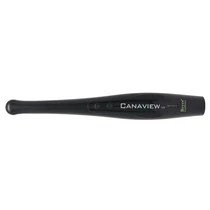
Canaview Intra Oral Camera, Direct-USB, Auto-Focus
- SKU:
- BEY-EV2060
- Brand
- Beyes Dental
- MPN:
- EV2060
Related Products
Beyes Dental
Canaview Intra Oral Camera V2, Direct-USB, Auto-Focus, Zoom, Adjustable Light
An excellent communication tool that improves understanding and interaction with patients. The Canaview intraoral camera provides visual evidence that you need to educate patients and make more...

Beyes Dental
Canaview Intra Oral Camera USB Cable
USB Cable for Canaview

Beyes Dental
Canaview Intra Oral Camera Wall Holder
Holder for Canaview Intra Oral Camera

Beyes Dental
Canaview Intra Oral Camera Sleeve, Single Use, 100/Pack
Sleeve for Canaview, Single Use, 100pcs/pack

TIDI
Sheaths for Intra-Oral Iris Camera 500/Pk
500 (5 boxes of 100) Camera Model: IrisCustom fit and designed specifically for each camera model. SureClear Window for superior image quality that eliminates distortion. Unique individually wrapped,...
Description
The Canaview Intraoral Camera is an excellent communication tool that improves patient understanding and interaction. It provides clear visual evidence to support patient education, clinical documentation, and more accurate diagnoses.
Featuring true autofocus and an intuitive lighting system, the camera requires no manual adjustment. Its lightweight, direct-USB design also makes it easy to move between examination rooms and operatories.
Key Features
- Ultra-wide, non-spherical lens
- True autofocus
- Innovative anti-fog design
- Direct USB connection to a computer
- High-resolution 5 MP imaging
- Responsive image-capture button
- Complimentary image-management software
- Lightweight, easy-to-handle body
- No manual focus or lighting adjustments required
- Easy to share between examination rooms and operatories
Product Information
| Product Code | EV2060 |
|---|---|
| Model | Canaview Intraoral Camera |
| Connection | Direct USB |
| Focus Type | Autofocus |
Technical Specifications
| Focus Type | Auto |
|---|---|
| Focus Range | 4–60 mm |
| Connection Type | USB to computer |
| Image Quality | 5 million pixels |
| Resolution | 1600 × 1200 |
| Camera Length | 20 cm |
| Weight | 35 g |
| Cable Length | 2 m |
| Power | DC 5 V ± 0.5 V (1.5 A) |
| Operating System | Windows 10, 8, 7, XP, or Vista (32-bit or 64-bit) |
| Warranty | 12 months |
Compatible Imaging Software
The Canaview Intraoral Camera is compatible with many major dental imaging platforms, including:
- AbleDent
- Adstra
- Apixia
- Apteryx
- CaptureLink
- ClearDent
- CliniView
- Curve Hero
- DentiMax
- Dentrix Ascend
- DEXIS
- Digora
- Eaglesoft
- Examine Pro
- EZDent-i
- MOGO
- Owandy
- Planmeca Romexis
- Praktika
- Prof. Suni Imaging
- Scanora
- Sidexis 4
- Sopro
- TigerView
- VixWin
- Visix
- XrayVision
Compatibility and setup procedures may vary by software version. If your imaging software is not listed, contact the software provider or Beyes Technical Support for assistance.
Before Connecting the Camera
Before connecting the camera, download and install the Canaview Capture Key Integration Software. This software connects the capture button on the Canaview camera with your dental imaging software.
- Download the Canaview Capture Key Integration Software.
- Run the downloaded
.exefile. - Follow the on-screen installation instructions.
- Restart the computer if prompted.
After installation, the Canaview Capture icon should appear in the Windows taskbar notification area. You may need to open the hidden-icons menu to locate it.
Select Your Imaging Software
- Right-click the Canaview Capture icon in the Windows taskbar.
- Select your dental imaging software from the available options.
- If your software is not listed, select Custom Settings.
- Enter the keyboard shortcut used by your imaging software to capture or save an image.
Connect and Verify the Camera
- Connect the Canaview camera to a powered USB port.
- Wait for Windows to recognize and configure the device.
- Open Windows Device Manager.
- Expand the Cameras section.
- Confirm that the device is displayed as Canaview or USB Video Device.
- Open your dental imaging software.
- Select Canaview as the video or intraoral-camera source.
- Test the live video and image-capture button.
General Software Setup
The exact menu names differ between imaging platforms, but the general setup procedure is usually the same:
- Open the patient record in your imaging software.
- Open the imaging, video, acquisition, or intraoral-camera section.
- Select Canaview or USB Video Device as the video source.
- Start the live-video feed.
- Press the camera’s capture button to freeze or save an image.
Some programs require a specific keyboard shortcut or trigger setting. Select the corresponding software profile in Canaview Capture or create a custom keystroke profile.
Custom Capture-Key Setup
If your imaging software is not available in the Canaview Capture menu, you can create a custom configuration:
- Right-click the Canaview Capture taskbar icon.
- Select Custom Settings.
- Enter the keyboard shortcut used by your imaging software for capturing or saving an image.
- Save the custom configuration.
- Open your imaging software and test the camera button.
Troubleshooting
The camera is not detected
- Try a different powered USB port.
- Avoid connecting the camera through an unpowered USB hub.
- Confirm that the camera appears in Windows Device Manager.
- Restart the computer with the camera connected.
The wrong camera opens
- Select Canaview or USB Video Device inside your imaging software.
- Temporarily disable unused webcams in Windows Device Manager.
- Close other programs that may be using the camera.
The capture button does not work
- Confirm that Canaview Capture is running.
- Select the correct imaging-software profile.
- Verify the required capture-key shortcut.
- Try running Canaview Capture as an administrator.
- Use Custom Settings if your imaging software is not included in the available profiles.
The browser cannot access the camera
For browser-based imaging software, allow camera access in the browser’s privacy or site-permission settings. Make sure Canaview is selected as the permitted camera.
Technical Support
Imaging software that only supports a TWAIN driver may require additional configuration. For assistance, contact Beyes Technical Support at +1 (855) 603-1888.
Customer Testimonial
“I’ve used a few intraoral cameras, but the Beyes Intraoral Camera stands out. The image quality is extremely clear, making it easy to show patients exactly what is happening with their teeth. It is lightweight, easy to use, and connects smoothly. It is a game changer for patient education and documentation.”
Promotion
CANAVIEW Intraoral Camera
Buy 1 Get 1 FREE!
Promotion Period
October 1 - December 31, 2026. Our Loyalty Programs apply.
Redemption Instruction
- Promo code: CAQ326
- Eligible Items: EV2060
- Add 2 items into your shopping cart, and the FREE item will be applied automatically.